macOS app
FlexQ for Mac: a real-time AI interview copilot for Zoom, Google Meet and Teams
macOS 13 Ventura or newer · Apple Silicon and Intel · notarized by Apple
FlexQ is a Mac app that listens to your interview on Zoom, Google Meet or Microsoft Teams. When the interviewer asks a question, it shows a short cue on your screen, grounded in your résumé and the job description once you add them, that you say in your own words. After the call you get a recap. The first 30 live minutes are free, with no card.
What it does on a call
- Hears both sides. Your microphone and the call's audio, so it knows when a question lands.
- Shows a short cue. Talking points appear within seconds of the question. You say them in your own words. One tap makes a cue Simpler, adds More detail or tries a Different angle.
- Knows your story. Add your résumé and the job description and FlexQ builds an interview brief before the call. With a filled profile, cues come from your real experience.
- Recaps the call. A summary, the key points and the follow-ups when the call ends.
- Lets you practice first. The voice mock interviewer runs in your browser, built from the same résumé and job description.
On work calls, FlexQ can also cue you from your project folder, with facts prepared by Claude Code or Codex. See the AI meeting assistant for work calls.
Requirements
- macOS: 13 Ventura or newer. Earlier versions are not supported.
- Chip: Apple Silicon or Intel. The same .dmg works on both.
- Signing: signed with an Apple Developer ID and notarized by Apple, so macOS asks only once before the first open.
- Meeting apps: Zoom, Google Meet and Microsoft Teams.
- Permissions: Microphone and Screen Recording (Screen & System Audio Recording on later Sonoma updates and on macOS 15 and later).
Permissions FlexQ asks for, and why
macOS asks you to approve two permissions. FlexQ asks when it needs them and links you to the right System Settings page.
- Microphone. Transcribes your side of the call.
- Screen Recording, called Screen & System Audio Recording on later Sonoma updates and on macOS 15 and later. Lets FlexQ hear the other side and read your screen for the screen scan. Allow it: macOS ties the call's system audio to this permission, so without it FlexQ can't hear the interviewer and can't go live, and its screen-based features stay off.
If FlexQ can't hear you or the other side, check both in System Settings, then quit FlexQ and open it again. Step by step, by macOS version: Mac setup and troubleshooting.
Install in four steps
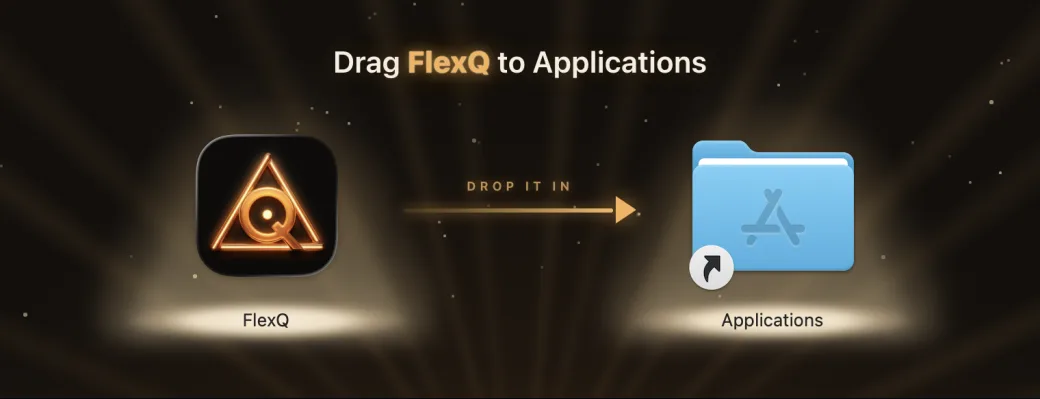
- Open the downloaded .dmg and drag FlexQ into Applications.
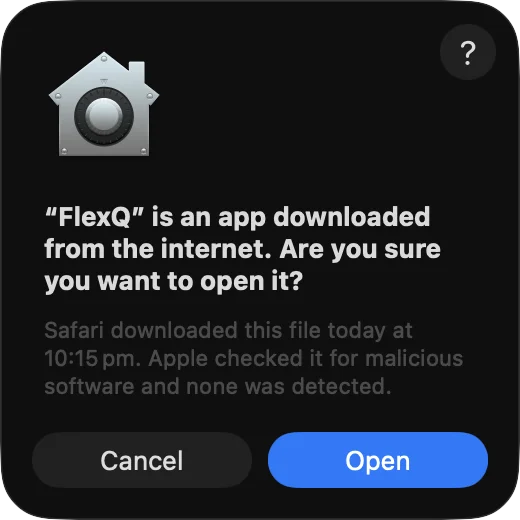
- Open FlexQ from Applications. macOS asks if you're sure you want to open an app downloaded from the Internet. Click Open. It asks only once.
- Sign in with your email.
- When FlexQ asks, allow Microphone and Screen Recording.
On Intel Macs the first launch can take up to a minute while macOS checks FlexQ. Double-click once and wait for the Open prompt.
Screen sharing
FlexQ is an app on your Mac, not a participant in the meeting. Its overlay window sets macOS content protection, so it can be excluded from a single-window screen share. How this works depends on your sharing tool and mode, so check before the call. Know the ground rules of the process you're in: FlexQ is built to help you recall your own experience faster, not to invent credentials you don't have.
Your audio and data
Live audio is sent to transcription providers during the call. FlexQ doesn't save it as a recording. Call transcripts are saved to your account by default; switch this off in Settings anytime. Saved calls are deleted with your account or when you ask us. How FlexQ handles your data.
Is FlexQ safe to install?
- Signed and notarized. FlexQ is signed with an Apple Developer ID and notarized by Apple: Apple scanned this build for malware before release, and macOS verifies that on the first open. To check it yourself, run
spctl -a -vv /Applications/FlexQ.appin Terminal. It printssource=Notarized Developer ID. - Two permissions, each for one job. Microphone transcribes your side of the call. Screen Recording (Screen & System Audio Recording on later Sonoma updates and on macOS 15 and later) lets FlexQ hear the other side and read your screen for the screen scan. FlexQ does not ask for the camera, Accessibility or Full Disk Access. You can switch either permission off in System Settings at any time.
- Not a bot in your meeting. FlexQ runs on your Mac. It doesn't join Zoom, Google Meet or Microsoft Teams as a participant and doesn't post anything in the call.
- Your audio and data. Live audio goes to transcription providers during the call and isn't saved as a recording. Call transcripts are saved to your account by default; switch this off in Settings. The privacy policy lists every provider and what each one receives.
- Easy to remove. Quit FlexQ and move it from Applications to the Trash. Calls already saved to your account are deleted with your account or when you ask us.
- Who we are. FlexQ is made by a small independent team. Write to contact@flexq.app with any question.
- Listed on. There's An AI For That and PowerfulAI.tools.
Pricing
The first 30 live minutes are free, with no card. After that, pay per live hour: a $15 Starter pack for 3 hours, a $99 one-time 90-day Pass for 25 hours or $49 a month for 12 hours. A $25 top-up adds 8 more, only with an active Monthly or 90-day Pass. Mock interviews never use live hours. See pricing and the per-hour math.
Questions
Does FlexQ work on Apple Silicon and Intel Macs?
Yes. One .dmg works on both Apple Silicon and Intel Macs. FlexQ needs macOS 13 Ventura or newer.
Does FlexQ work with Zoom, Google Meet and Microsoft Teams?
Yes. FlexQ works live with Zoom, Google Meet and Microsoft Teams. It is an app on your Mac, not a participant in the meeting, so nothing joins the call.
Which macOS permissions does FlexQ need?
Microphone, to transcribe your side of the call, and Screen Recording (called Screen & System Audio Recording on later Sonoma updates and on macOS 15 and later), which lets FlexQ hear the other side and read your screen. Allow both. Without Screen Recording, FlexQ can't hear the interviewer and can't go live, and its screen-based features stay off.
Is FlexQ notarized by Apple?
Yes. The first time you open it, macOS asks once whether you want to open an app downloaded from the Internet. Click Open. After that it opens like any other app.
Does FlexQ show up when I share my screen?
FlexQ's overlay window sets macOS content protection, so it can be excluded from a single-window screen share. How this works depends on your sharing tool and mode, so check before the call.
Where does my call audio go?
Live audio is sent to transcription providers during the call. FlexQ doesn't save it as a recording. Call transcripts are saved to your account by default; switch this off in Settings anytime. Saved calls are deleted with your account or when you ask us.
Is FlexQ safe to install on my Mac?
FlexQ is signed with an Apple Developer ID and notarized by Apple, which means Apple scanned this build for malware before release. It asks for two permissions, Microphone and Screen Recording, and does not ask for the camera, Accessibility or Full Disk Access. It is an app on your Mac, not a bot: nothing joins your Zoom, Meet or Teams call. Live audio is sent to transcription providers during the call and is not saved as a recording; call transcripts are saved to your account by default, and you can switch that off in Settings. To remove FlexQ, quit it and move it from Applications to the Trash. Questions: contact@flexq.app.
Is there a Windows version?
Yes. FlexQ also runs on Windows (x64); the download page has the Windows build.
Try FlexQ on your next interview
Your first 30 live minutes are free, with no card. Or rehearse first with a voice mock interview in your browser.
Plans and the per-hour math: FlexQ pricing. Comparing tools? See interview copilots compared.